Welcome to OpenShift!
This lab provides a quick tour of the console to help you get familiar with the user interface along with some key terminology we will use in subsequent lab content. If you are already familiar with the basics of OpenShift you can skip this lab - after making sure you can login.
Key Terms
We will be using the following terms throughout the workshop labs so here are some basic definitions you should be familiar with. And you’ll learn more terms along the way, but these are the basics to get you started.
- Container - Your software wrapped in a complete filesystem containing everything it needs to run
- Image - We are talking about Docker images; read-only and used to create containers
- Pod - One or more docker containers that run together
- Service - Provides a common DNS name to access a pod (or replicated set of pods)
- Project - A project is a group of services that are related logically (for this workshop we have setup your account to have access to just a single project)
- Deployment - an update to your application triggered by a image change or config change
- Build - The process of turning your source code into a runnable image
- BuildConfig - configuration data that determines how to manage your build
- Route - a labeled and DNS mapped network path to a service from outside OpenShift
- Master - The foreman of the OpenShift architecture, the master schedules operations, watches for problems, and orchestrates everything
- Node - Where the compute happens, your software is run on nodes
Accessing OpenShift
OpenShift provides a web console that allow you to perform various tasks via a web browser. Additionally, you can utilize a command line tool to perfrom tasks. Let’s get started by logging into both of these and checking the status of the platform.
Let’s Login
Navigate to the URI provided by your instructor and login with the user/password provided (if there’s an icon on the Desktop, just double click that)
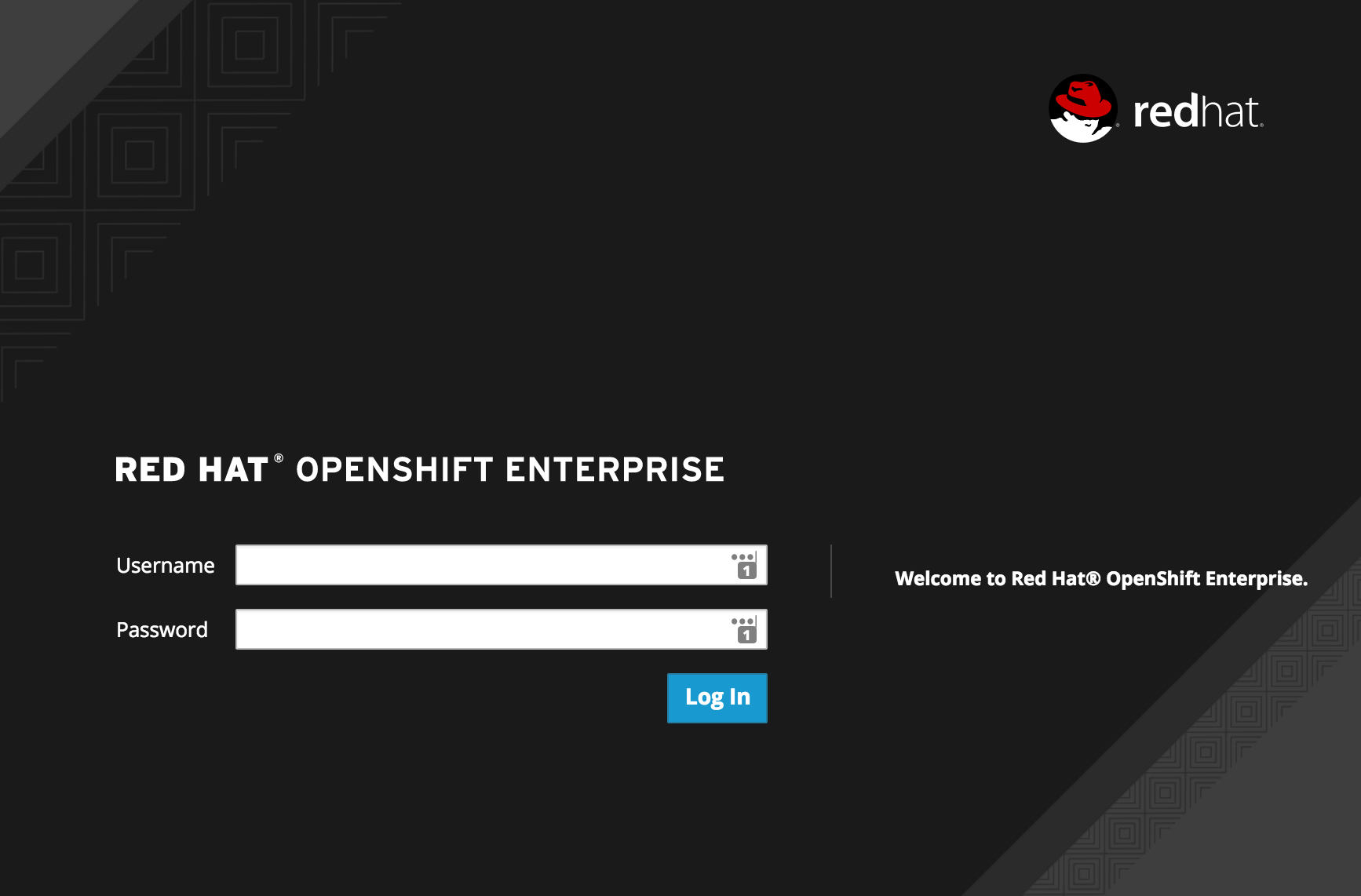
Login Webpage
Once logged in you should see your available projects - which, for this workshop, is just one project.
So this is what an empty project looks like
Click on one of the projects from the project list
Don’t worry, it’s supposed to look empty right now because you currently don’t have anything in your project. We’ll fix that in the next lab.
Let’s try the command line
Open a terminal and login using the same URI/user/password with following command:
$ oc login [URI]Check to see what projects you have access to:
$ oc get projectsIt looks empty via the command line too
Type the following command to use the demo project (replace ‘demo’ with the project you want to use if there isn’t a demo project):
$ oc project demoType the following command to show services, deployment configs, build configurations, and active deployments:
$ oc statusSummary
You should now be ready to get hands-on with our workshop labs